How to cut dead air out of a Zoom recording before compressing it
August 27, 2026
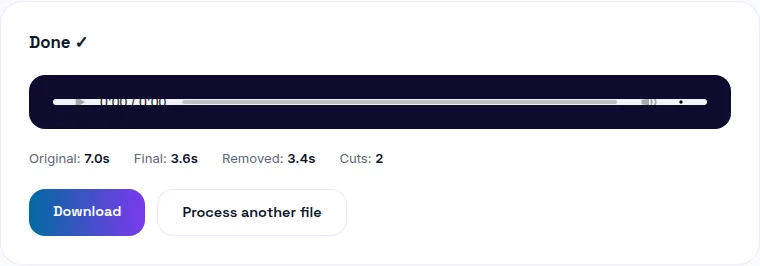
Cut dead air out of a long meeting recording before compressing it, not after — shortening the runtime reduces file size on its own, so compression afterward has less total footage to work through and produces a smaller final file for the same visual quality. You can cut the silence free here, then compress the result, both in your browser.
Why the order matters
A one-hour Zoom recording full of dead air — pauses, waiting for people to join, screen-share loading time — has a lot of runtime that isn't carrying any actual content. Cutting that dead air first shrinks the recording's actual length, so whatever compression you apply afterward is working with less total footage. Compress first and cut silence after, and you've spent compression effort on footage you were going to delete anyway.
How automatic silence detection works
It measures audio level against a threshold — any stretch quieter than that threshold for longer than a set minimum pause length gets marked as silence and cut. Both the threshold (how quiet counts as "silent") and the minimum pause length (how long a quiet stretch has to last before it's cut) are typically adjustable, so you can tune how aggressively it trims based on how the recording actually sounds.
Will it make the recording sound choppy?
Not if it's implemented properly — a good silence-removal tool trims pauses down to a brief, natural gap rather than a jarring hard cut straight from speech to speech. The recording should still breathe normally between sentences and speaker changes; it's the long, dead stretches specifically that get shortened.
Does it work with multiple speakers?
Yes — silence detection is based on overall audio level, not on identifying who's speaking, so it works the same way whether it's one person narrating or a full meeting with several participants talking over the course of the recording.
Preview before committing
A good silence-removal tool shows you what's marked for removal before you export — check the preview, and adjust the sensitivity threshold if it's cutting too aggressively (trimming natural pauses in speech) or not aggressively enough (leaving long dead stretches in).
The full workflow for a long meeting recording
1. Run the raw recording through silence removal, adjusting the threshold until the preview looks right.
2. Export the trimmed recording.
3. Compress the trimmed result to whatever size target you need — a smaller starting point makes hitting that target easier.
The bottom line
Cutting dead air first, compressing second, gets you a smaller file for the same visual quality than doing it the other way around. Try WavyVid's silence removal free, preview the cuts, then compress the trimmed result.
Frequently asked questions
Why cut silence before compressing instead of after?
Removing silence shortens the actual runtime, which reduces file size on its own — doing it first means the compression step afterward has less total footage to work through, and you get a smaller final file for the same visual quality than compressing the full-length recording first.
How does automatic silence removal decide what counts as dead air?
It measures audio level against a threshold — sections quieter than the threshold for longer than a set pause duration get marked as silence. Both the threshold and minimum pause length are usually adjustable, so you can tune how aggressively it cuts.
Will removing silence make the recording feel choppy?
Not if the cuts are done properly — a well-implemented silence cut trims pauses down to a natural, brief gap rather than a jarring hard cut, so the recording still breathes normally between sentences.
Does this work on a recording with multiple speakers?
Yes — it's based on overall audio level, not who's speaking, so it works the same way whether it's one person or a full meeting with several participants talking.
Can I preview what will be cut before committing?
A good silence-removal tool should let you see or hear what's marked for removal before you export, so you can adjust the threshold if it's cutting too aggressively or not enough.